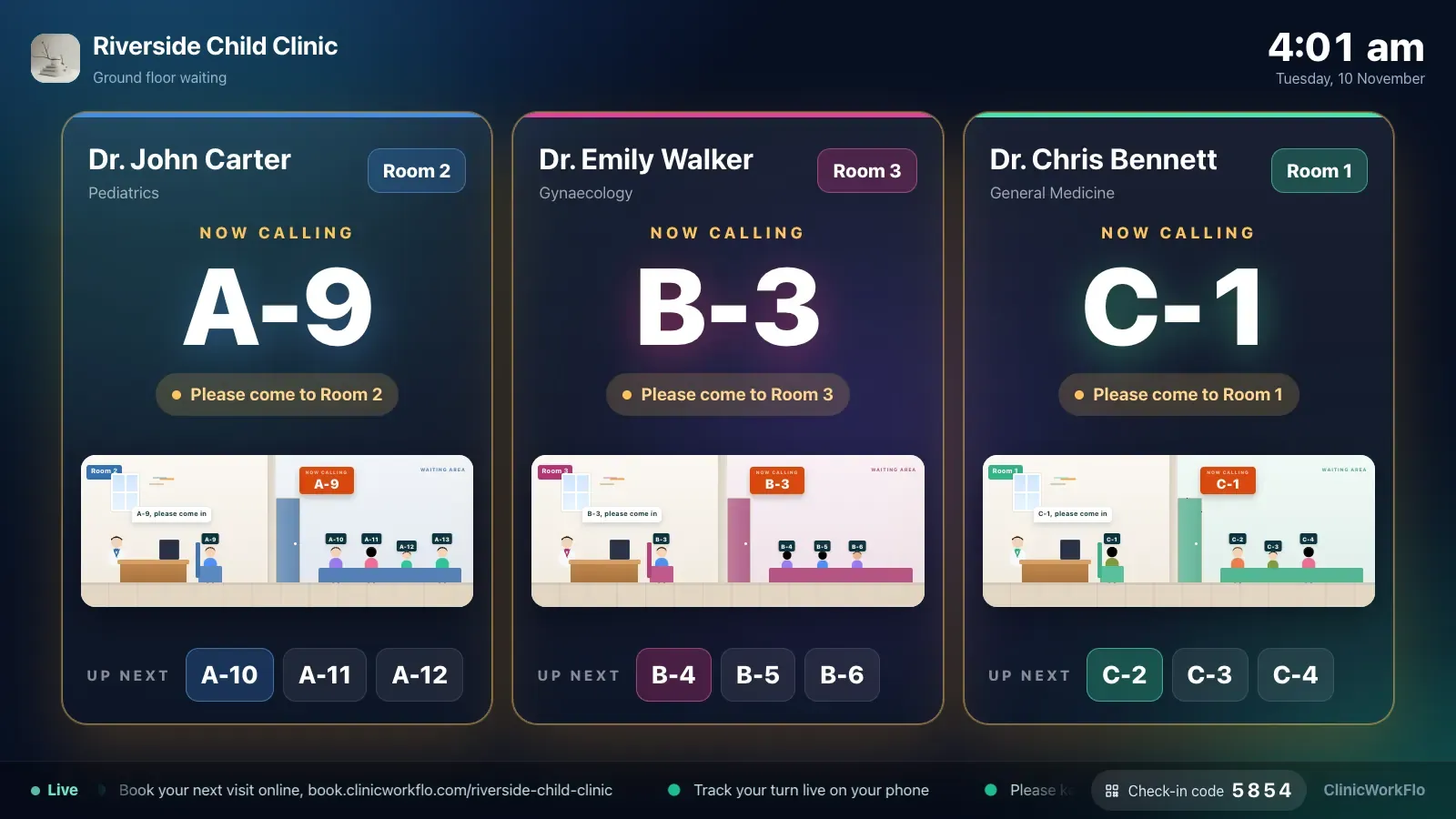
A waiting room without a display is a room full of people watching the reception desk. Every time the receptionist stands up, half the room looks up to see whether their number is next. A token display system for clinics puts the answer on a screen everyone can see: which token is with which doctor, who is next, and a clear call when it is someone's turn.
This guide covers what a waiting-room token display should show, which layout suits which clinic, the hardware you actually need, how to set one up, and how to keep patient privacy intact. It is written for clinic owners and OPD managers planning a new display or replacing an old token machine.
What a token display system for clinics does
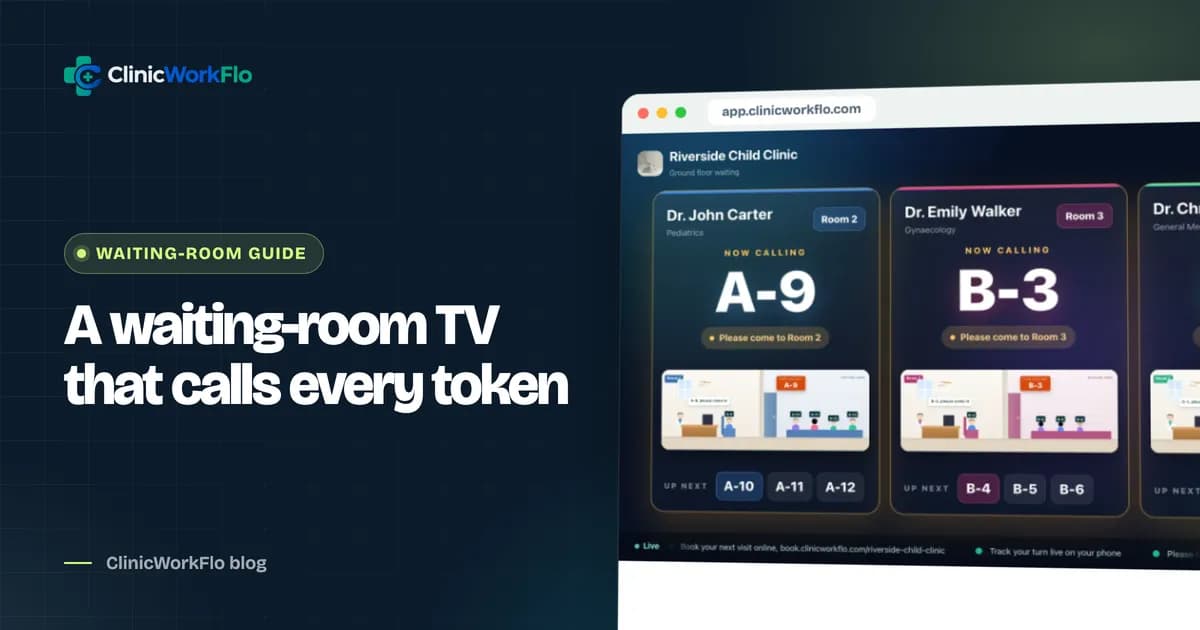
A token display is the public face of your queue. It shows the token currently with each doctor, the next few tokens in line, and makes an announcement when a new token is called. When it is connected to the same live queue that reception and the doctors use, it updates the moment someone presses "Call next", without anyone touching the TV.
Why it matters more than it seems
- Fewer questions at the desk. Patients can see the current token for themselves.
- Fairness you can see. When everyone can watch the order, arguments about who came first fade away.
- Fewer missed calls. A chime and an on-screen announcement catch the attention of patients who are reading or looking at their phones.
- A calmer room. People who know roughly how long they will wait tend to relax.
If you are planning a new waiting room or replacing an old token counter, schedule a 30-minute meeting and we will show you a live display during the call.
Old-style token machines vs browser-based displays
Many clinics still use a standalone token counter: a red LED number, a button at the doctor's desk and a wire across the ceiling. They work, but they are limited.
| LED token counter | Browser-based token display | |
|---|---|---|
| Hardware | Dedicated counter, buttons and wiring | Any smart TV, Android TV box or laptop with a screen |
| Doctors shown | Usually one counter per doctor | Several doctors on one screen |
| Connected to bookings and walk-ins | No, it only shows a number | Yes, it reads the same live queue as reception |
| Next tokens in line | No | Yes |
| Announcement | Beep | Chime, on-screen call and optional spoken announcement |
| Matches patient's phone | No | Yes, the same "now serving" as the tracking link |
| Changes | Rewiring | Change doctors or layout from the admin panel |
What your token display should show
- Token with each doctor: large and readable from the back of the room.
- Doctor name and room: so patients know where to go when called.
- Next few tokens: so patients can get ready before they are called.
- A clear call moment: a full-screen announcement when a token is called, with a chime.
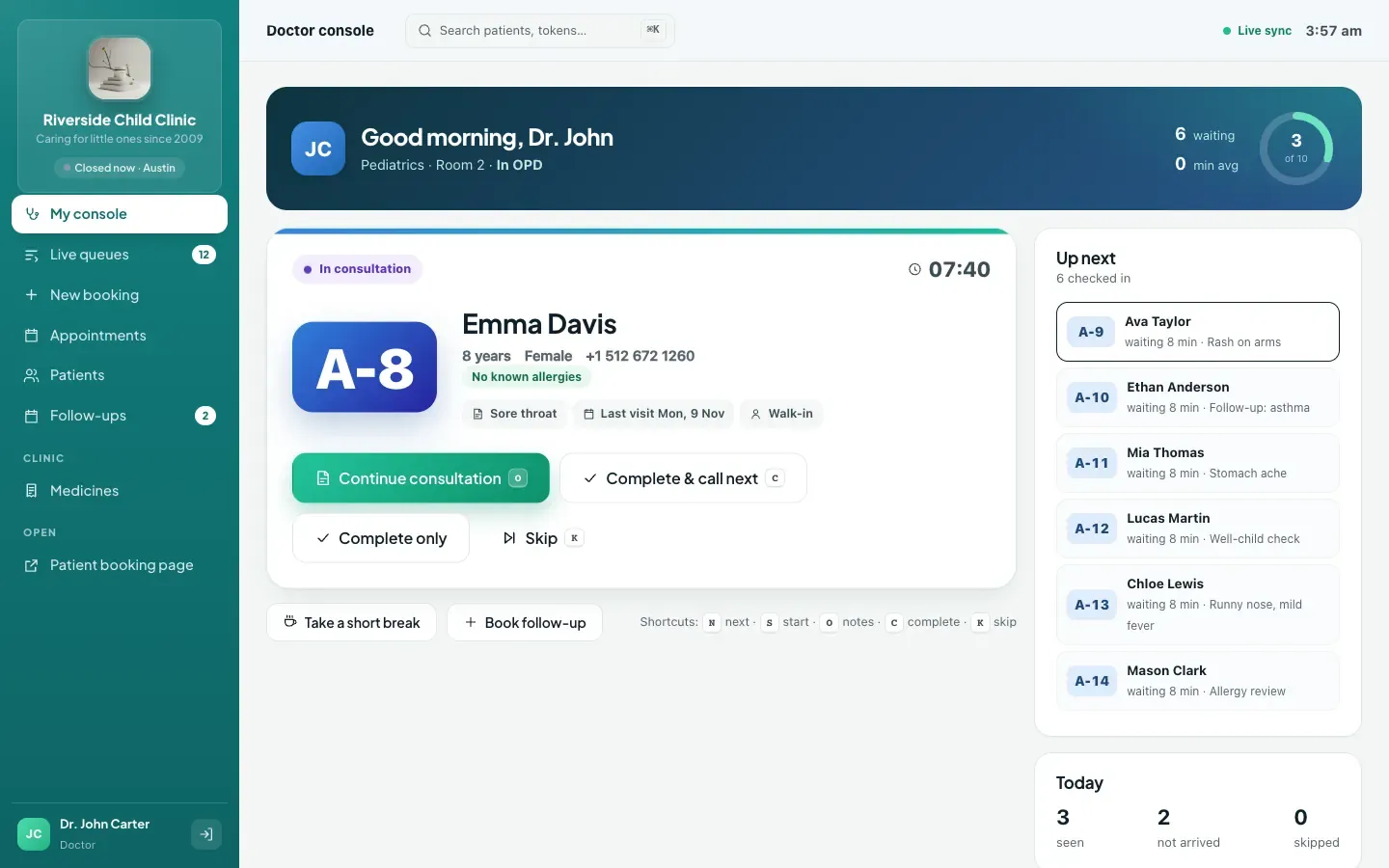
- Doctor status: whether a doctor has started, is on a short break or has finished OPD.
- Your clinic's identity: logo and brand colour, so the screen looks like part of your clinic.
- The self check-in code, if you use QR self check-in, so patients can find it without asking.
What it should not show by default
Full patient names on a public screen are a privacy problem, especially in specialities such as psychiatry, gynaecology or sexual health. Token numbers alone are usually enough. If your patients are used to hearing names, show only a first name and an initial, and make it a conscious choice rather than the default. In ClinicWorkFlo, names on the TV are off until the clinic switches on "Show name on TV", and even then the screen shows a shortened name.
Choosing a layout
Different clinics need different screens. ClinicWorkFlo offers three layouts, each set per screen:
| Layout | What it shows | Good for |
|---|---|---|
| All doctors board | One column per doctor, the token being served and the next few in line | Polyclinics and OPDs with several doctors sharing a waiting area |
| Now calling | The latest called token very large, with each doctor's queue below | Large waiting halls where readability from a distance matters most |
| Cabin view | An animated cabin per doctor, up to four | Children's clinics and family practices that want a friendlier screen |
Hardware: what you actually need
- A screen: a 32 to 43 inch TV is enough for most waiting rooms. Bigger halls may need 50 inches or more, or two screens.
- Something that runs a web browser: a smart TV's built-in browser, an Android TV box or stick, or an old laptop connected by HDMI.
- Internet: a normal clinic Wi-Fi or wired connection. The display keeps a light live connection and falls back gracefully on networks that block some connection types.
- Speakers: the TV's own speakers are usually fine for the chime and announcement.
There is no special controller or wiring. If the TV is switched off and on again, it reconnects to the same screen.
Not sure what to buy or where to mount it? Talk to our team and we will help you plan screens for your waiting areas.
Setting up a waiting-room display in 6 steps
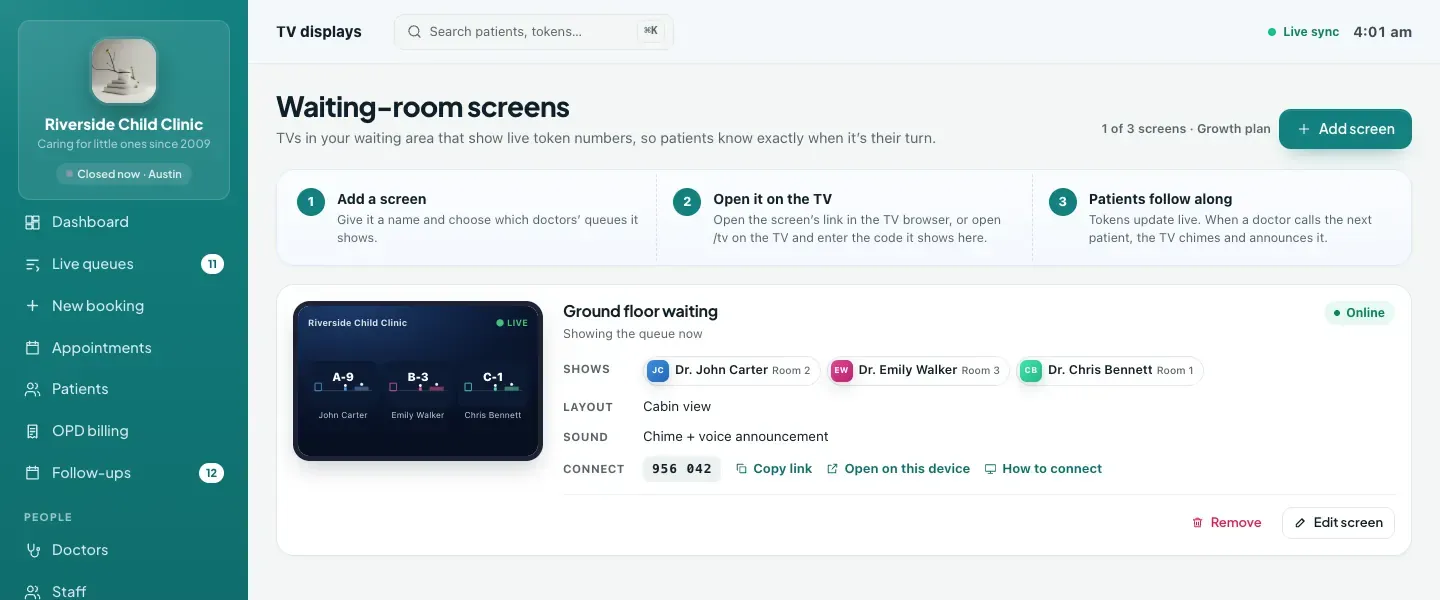
- Open the TV page in the TV's browser. It shows a 6-digit screen code.
- Add the screen in the admin panel. In TV displays, give the screen a name such as "Ground floor waiting", and enter the code shown on the TV.
- Pick the doctors this screen should show. A ground-floor screen and a first-floor screen can show different doctors.
- Choose the layout: all doctors board, now calling, or cabin view.
- Switch on sound: the chime, and on plans that include it, a spoken announcement of the token, doctor and room.
- Test it: call a test token from reception and check that the screen and sound respond as expected.
Running the display day to day
Calls from anywhere
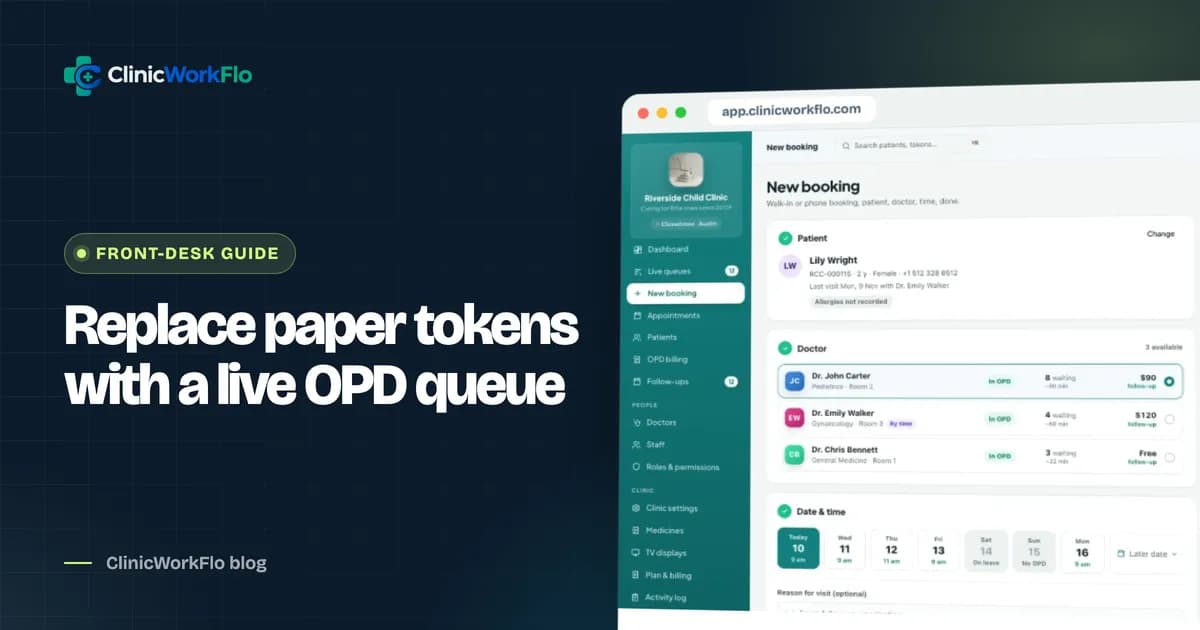
Whether reception presses "Call next" on the live queues screen or the doctor presses it in the doctor console, the TV shows the call immediately. "Call again" repeats the announcement for a patient who did not respond.
Breaks and end of OPD
When a doctor pauses for a short break, patients can see it rather than wondering why the line has stopped. When the doctor's session ends, the screen reflects that too.
Online status and unpairing
The admin panel shows whether each screen is online and when it was last seen. If a TV is replaced or stolen, unpair it from the admin panel; the old screen stops working at once and a new code is issued.
Tips for a display patients actually use
- Mount the screen where it can be seen from most seats, not just from the reception queue.
- Keep the volume high enough to be heard over conversation, but not jarring.
- Use the same token prefixes on slips, tracking links and the TV, so patients never have to translate.
- If you have separate waiting areas, give each its own screen with only the relevant doctors.
- Put up a small sign next to the TV explaining that patients can also follow their token on their phone.
Common display mistakes
- Too many doctors on one screen. If the columns become too small to read from the back row, split doctors across two screens or use the now-calling layout.
- Sound switched off. A silent screen is easy to miss. Keep the chime on, and test the volume during a busy session, not an empty one.
- A screen that goes to sleep. Turn off the TV's energy-saving sleep timer so the display stays on through the whole OPD session.
- Different numbers in different places. If the slip says 12, the TV says A-12 and the receptionist says "twelve for Dr. Rao", patients get confused. Use the same token label everywhere.
- Showing full names. It may feel friendly, but it exposes patients to everyone in the room. Token numbers, or at most a first name and initial, are enough.
How ClinicWorkFlo helps
ClinicWorkFlo's waiting-room display is part of the same live queue as reception, the doctor console and the patient's tracking link. It includes:
- Pairing with a 6-digit code on any smart TV, Android TV box or laptop browser, with no app to install.
- Three layouts: all doctors board, now calling, and cabin view for children's clinics.
- Per-screen doctors, so different waiting areas show different queues. Multiple screens depend on your plan.
- A full-screen call announcement with a chime, and a spoken announcement of the token, doctor and room on plans that include voice.
- Privacy by default: token numbers only, with an optional shortened name if you switch it on.
- Your clinic's logo and colour on the screen.
- The self check-in code on screen when QR self check-in is on.
- Online status, last seen and instant unpairing from the admin panel.
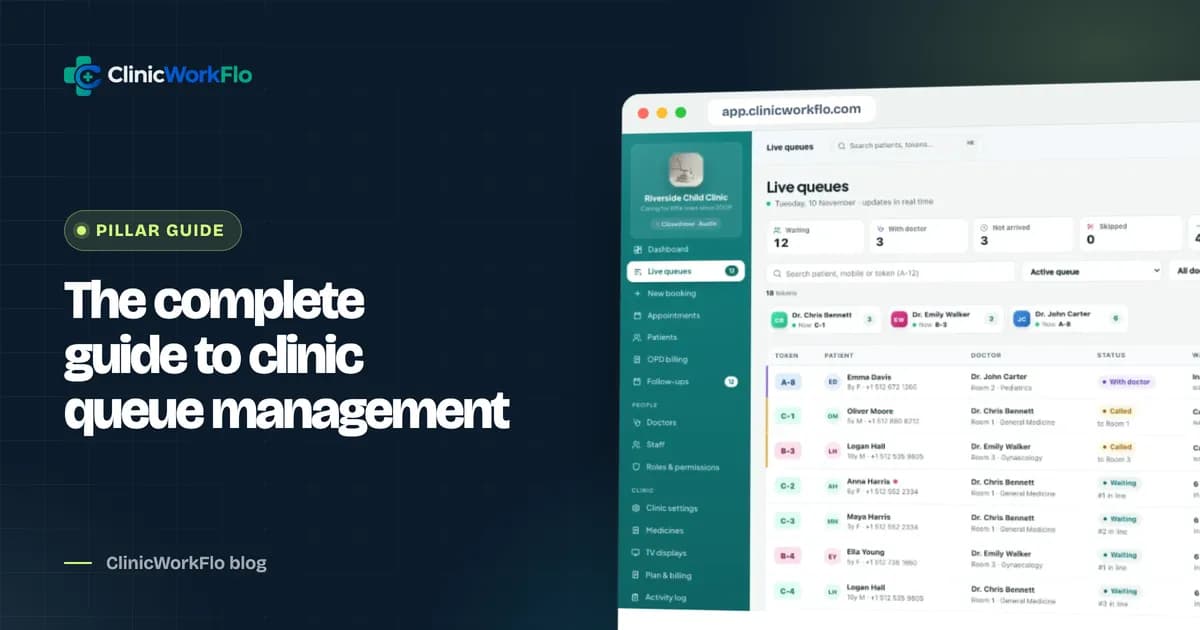
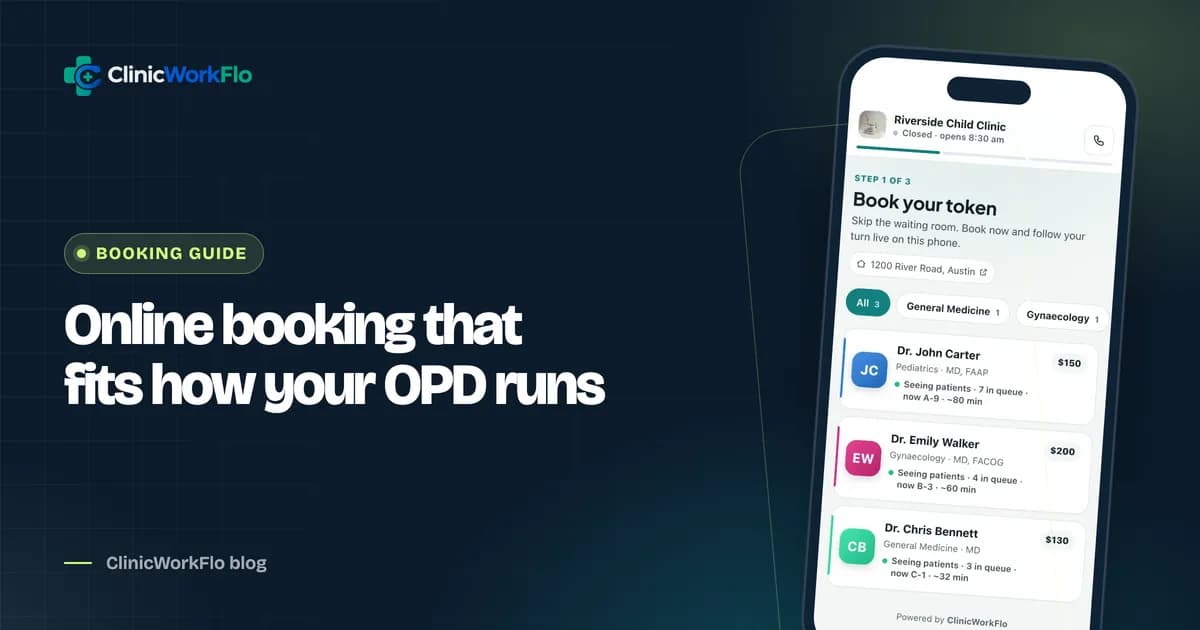
The display works best alongside a live queue and patient tracking. See our clinic queue management system guide for the full picture, real-time patient queue tracking for the phone side, and patient self check-in if you plan to show the check-in code on screen.
Want to see your waiting room on a live board? Book a 30-minute meeting and we will pair a demo screen with you during the call.
Frequently asked questions
What is a token display system for clinics?
It is a screen in the waiting room that shows which token is with each doctor and which tokens are next, and announces each new call. A connected system updates automatically from the clinic's live queue, so staff never have to change the screen by hand.
Do I need special hardware for a waiting-room token display?
No. ClinicWorkFlo's display runs in a web browser, so a smart TV, an Android TV box or stick, or a laptop connected to a TV is enough. You pair the screen by entering the 6-digit code it shows into the admin panel.
Can one screen show several doctors?
Yes. The all-doctors board shows one column per doctor, and you choose which doctors each screen shows. Clinics with more than one waiting area can pair separate screens with different doctors, depending on their plan.
Will patient names appear on the TV?
Not by default. ClinicWorkFlo shows token numbers only. If your clinic switches on "Show name on TV", the screen shows a shortened name such as a first name and initial, never the full name.
Can the display announce tokens out loud?
Every call plays a chime and shows a full-screen announcement. On plans that include voice, the screen also speaks the token, the doctor and the room.
What happens if the TV loses internet?
When the connection returns, the screen reconnects and loads the current queue. The admin panel shows each screen's online status and when it was last seen, so staff can spot a disconnected TV.
Conclusion
A token display system for clinics is one of the cheapest, most visible improvements you can make to a waiting room. Use hardware you probably already have, connect it to the same live queue as reception, keep names off the screen unless you have a reason, and make sure every call is seen and heard.
Planning screens for a new clinic or upgrading an old token counter? Talk to our team, or schedule a 30-minute meeting and we will help you pick layouts and screens for each waiting area.