Patients increasingly expect to book a doctor the way they book a cab: from their phone, in a minute, without calling a busy reception line. But online appointment booking for clinics is not the same as booking a table at a restaurant. Consultations run long, walk-ins never stop, and many Indian OPDs work on tokens rather than fixed times.
This guide explains how to set up online booking that fits the way your clinic actually runs. You will learn the difference between slot booking and token booking, how to keep walk-ins fair, what a good booking page needs, the rules worth configuring, and a step-by-step setup plan.
Why online appointment booking for clinics matters now
Phone bookings tie up reception at exactly the time the desk is busiest. Calls are missed, details are written on scraps of paper, and patients who could not get through simply go elsewhere. An online booking page works around the clock and lets patients choose a doctor, a day and a time or token without waiting on hold.
Online booking also gives you better information. Every booking arrives with the patient's name and mobile number typed by the patient, so reception spends less time spelling names over the phone.
If you would like to talk through the right setup for your doctors, schedule a 30-minute meeting with our team.
Slots vs tokens: choosing a booking model per doctor
The most important decision is how each doctor's day is organised. There is no single right answer, and in a polyclinic different doctors often need different models.
| Slot booking | Token booking | |
|---|---|---|
| What the patient chooses | A specific time, for example 11:15 | A day; they get the next token number for that doctor |
| Order of consultation | By slot time | By token number (first come, first served) |
| Works best when | Consultations are fairly predictable in length | Consultation length varies a lot, or most patients walk in |
| Typical users | Specialists, dermatology, physiotherapy, counselling | General practice, paediatrics, busy morning OPDs |
| Main risk | Running late makes every later slot late | Patients do not know when to arrive without a live view |
| How to reduce the risk | Realistic slot length and buffer for walk-ins | Give each token a live tracking link with an estimated time |
In ClinicWorkFlo, the booking mode is set per doctor. A token doctor and a slot doctor can sit side by side on the same booking page, and both feed the same live queue at reception.
How walk-ins fit around online bookings
Walk-ins are a fact of OPD life. A booking system that ignores them forces reception to keep a second list. The better approach is to put everyone in the same queue:
- For token doctors, a walk-in simply takes the next token, exactly like an online booking.
- For slot doctors, a walk-in is recorded at their arrival time and fits into the order alongside booked slots. A booked patient is never called before their slot time.
- Only checked-in patients are called. An online booking that has not arrived does not hold up the doctor.
You can also switch walk-ins on or off at clinic level, and switch online booking on or off per doctor, for example for a senior consultant who only sees referrals.
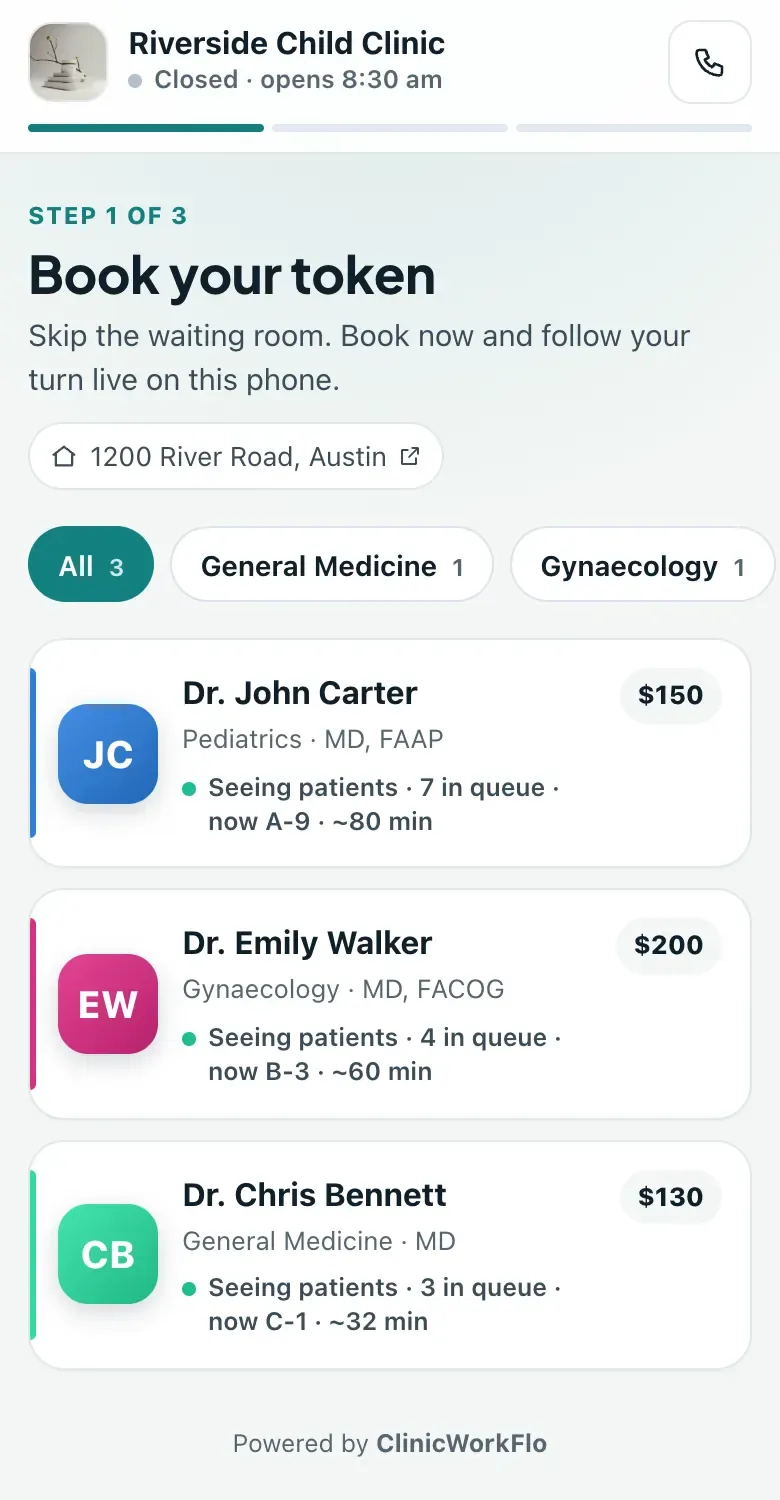
What a good clinic booking page needs
The booking page is often the first thing a new patient sees of your clinic. Keep it short, clear and trustworthy.
1. Your clinic's identity
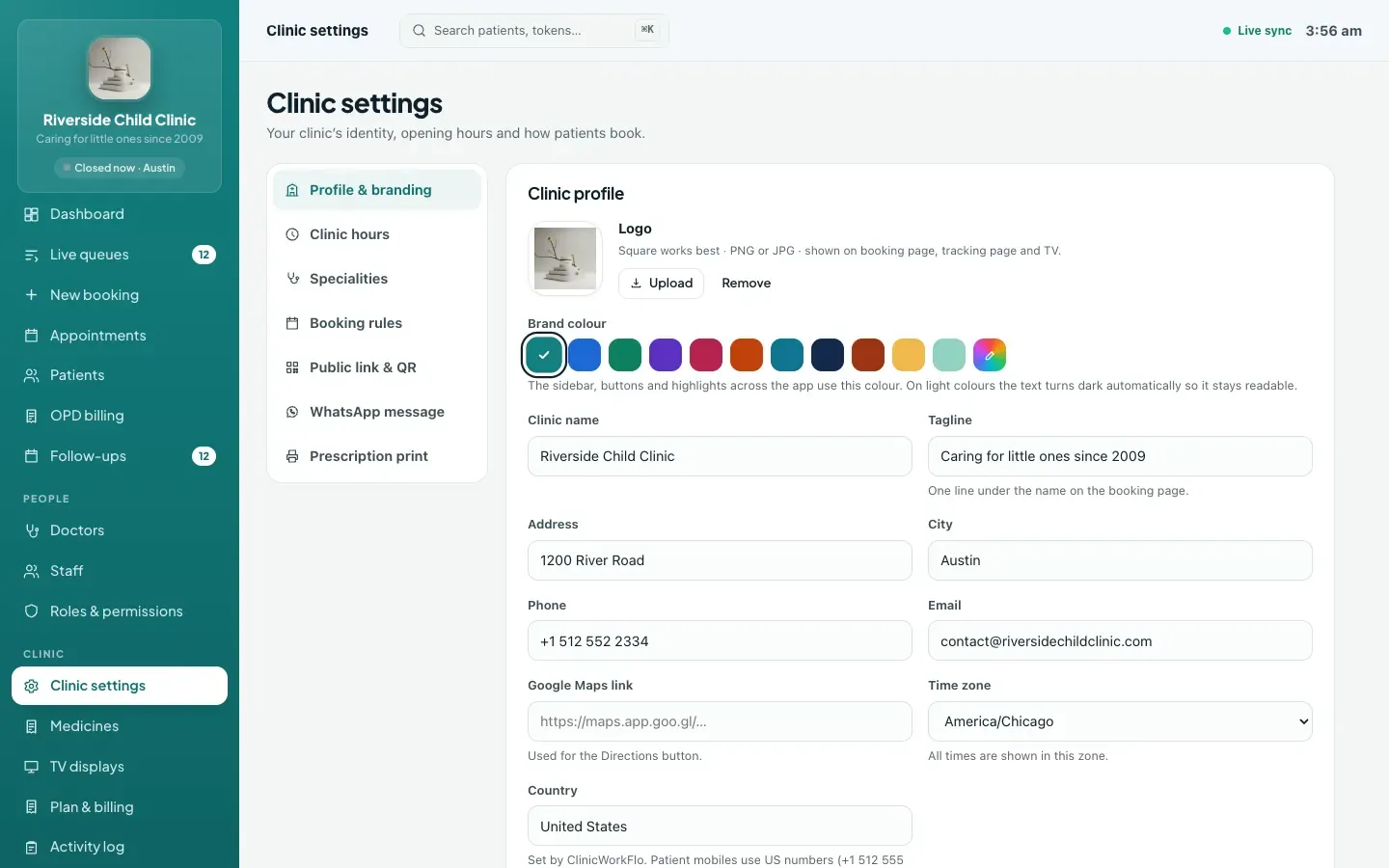
Your logo, brand colour, address and phone number, so patients know they are on the right page. ClinicWorkFlo's booking page uses your clinic's logo and colour automatically.
2. Doctors grouped by speciality
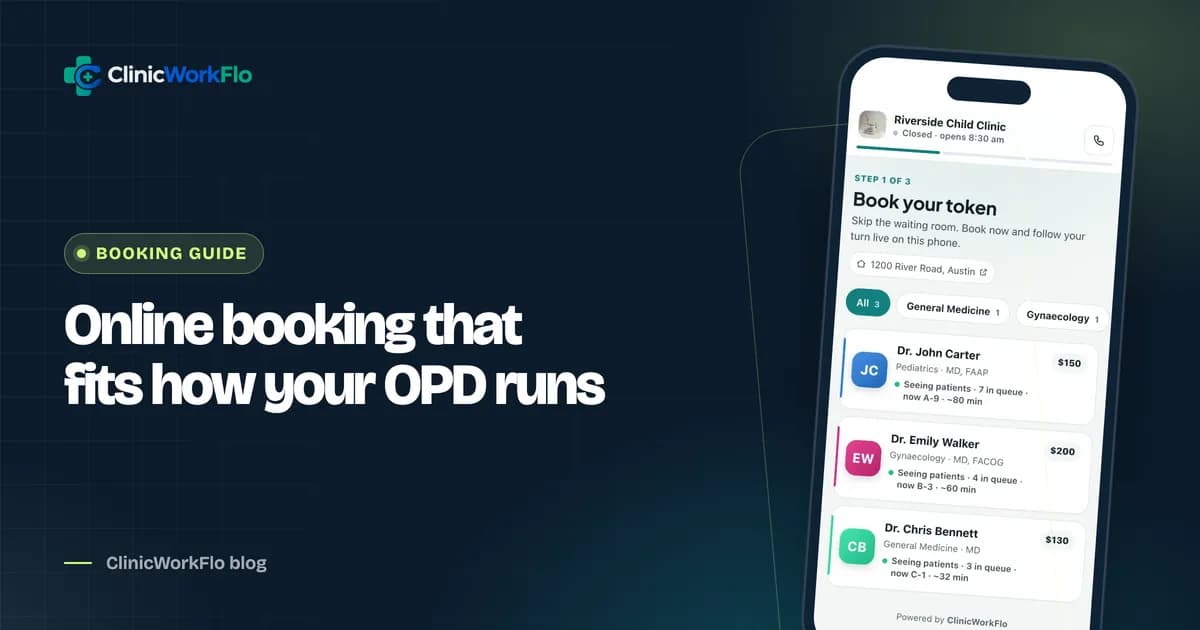
A patient looking for a paediatrician should not have to scroll through every doctor. Speciality filters and a search box solve this. Each doctor card should show the doctor's name, qualification, speciality and consultation fee.
3. Honest availability
Only show days the doctor actually runs OPD. If a doctor is on leave or a day is full, say so plainly ("On leave", "Full", "OPD over") instead of letting patients try and fail.
4. Very few fields
Name and mobile number are enough to start. Age and gender are useful for many clinics; make them optional or required according to your practice. Every extra field costs bookings.
5. A clear next step
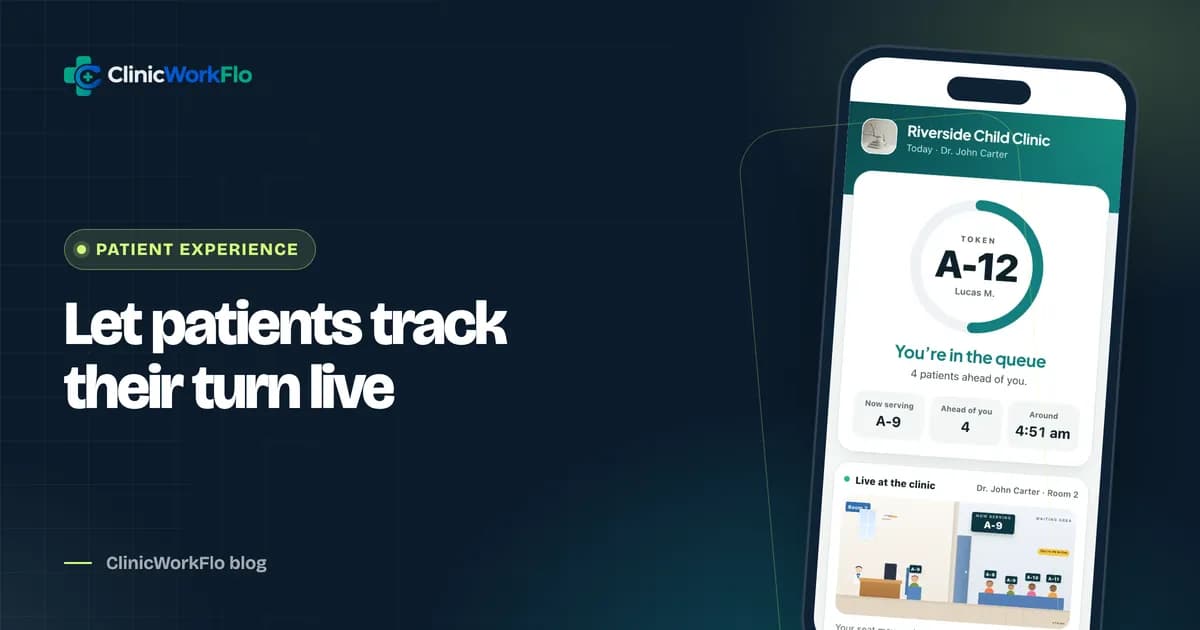
After booking, the patient should immediately see their token number or time, and a link to follow the queue live. Make it clear that the fee is paid at the clinic, so nobody is surprised.
6. No app, no password
Most patients will book once or twice a year. Asking them to install an app or create an account loses many of them. A web page that works on any phone is enough. ClinicWorkFlo's booking page can also be added to the phone's home screen for patients who visit often.
Booking rules worth setting up
- Advance booking window: how many days ahead patients can book. A short window keeps your schedule flexible.
- Daily limit per doctor: online booking stops when the doctor is full. Reception can still add a patient over the limit when the doctor agrees.
- Slot length for slot doctors, based on a realistic consultation time.
- One open booking per patient per doctor per day, so the same person cannot take three tokens.
- Weekly sessions and date overrides: regular OPD hours, plus leave days, changed hours and extra days for specific dates.
- Consultation fees: a new-visit fee and, if you use one, a follow-up fee that applies within a set number of days.
Not sure which rules suit your OPD? Talk to our team and we will go through your doctors' timings with you.
Setting up online appointment booking: step by step
- Add your clinic profile. Name, address, phone, maps link, logo and brand colour.
- Set clinic hours and specialities. Doctors' sessions must fit inside clinic hours.
- Add doctors. For each: speciality, qualification, registration number, fees, room, token prefix, average consultation time and booking mode (token or slot).
- Set weekly sessions. Morning and evening OPD, the days each doctor works, and any upcoming leave.
- Choose booking rules. Advance days, daily limits, whether to ask age and gender, and whether walk-ins are open.
- Test it yourself. Book a token on your own phone, follow the tracking link, then check in and complete it from reception.
- Publish the link. Share your booking link and per-doctor links, print the QR poster for reception, and add the link to your website and Google Business Profile.
Where to share your booking link
- WhatsApp: your clinic's WhatsApp status, broadcast lists and replies to "can I get an appointment?" messages.
- Google Business Profile: add it as your appointment link so patients can book from search and maps.
- Your website: a clear "Book a token" button on every page.
- Instagram and Facebook: in your bio and on posts about doctor schedules.
- At the clinic: the printed A4 QR poster at reception and in the waiting room, so patients can book their next visit before they leave.
- Direct doctor links: each doctor can share a link that opens their own booking page.
Managing bookings at reception
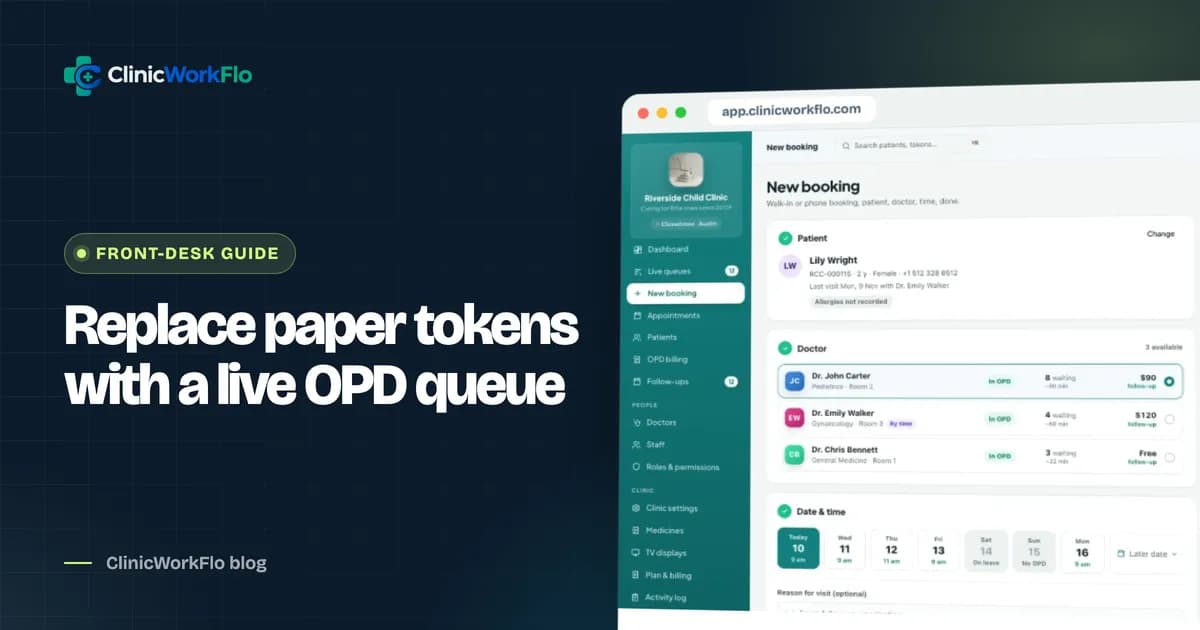
Online booking only works if reception can see and manage everything in one place. The appointments list should let staff search by name, mobile number, record number or token, filter by status and doctor, and act quickly: check in, cancel with a reason, reschedule a patient who has not arrived, or move them to another doctor.
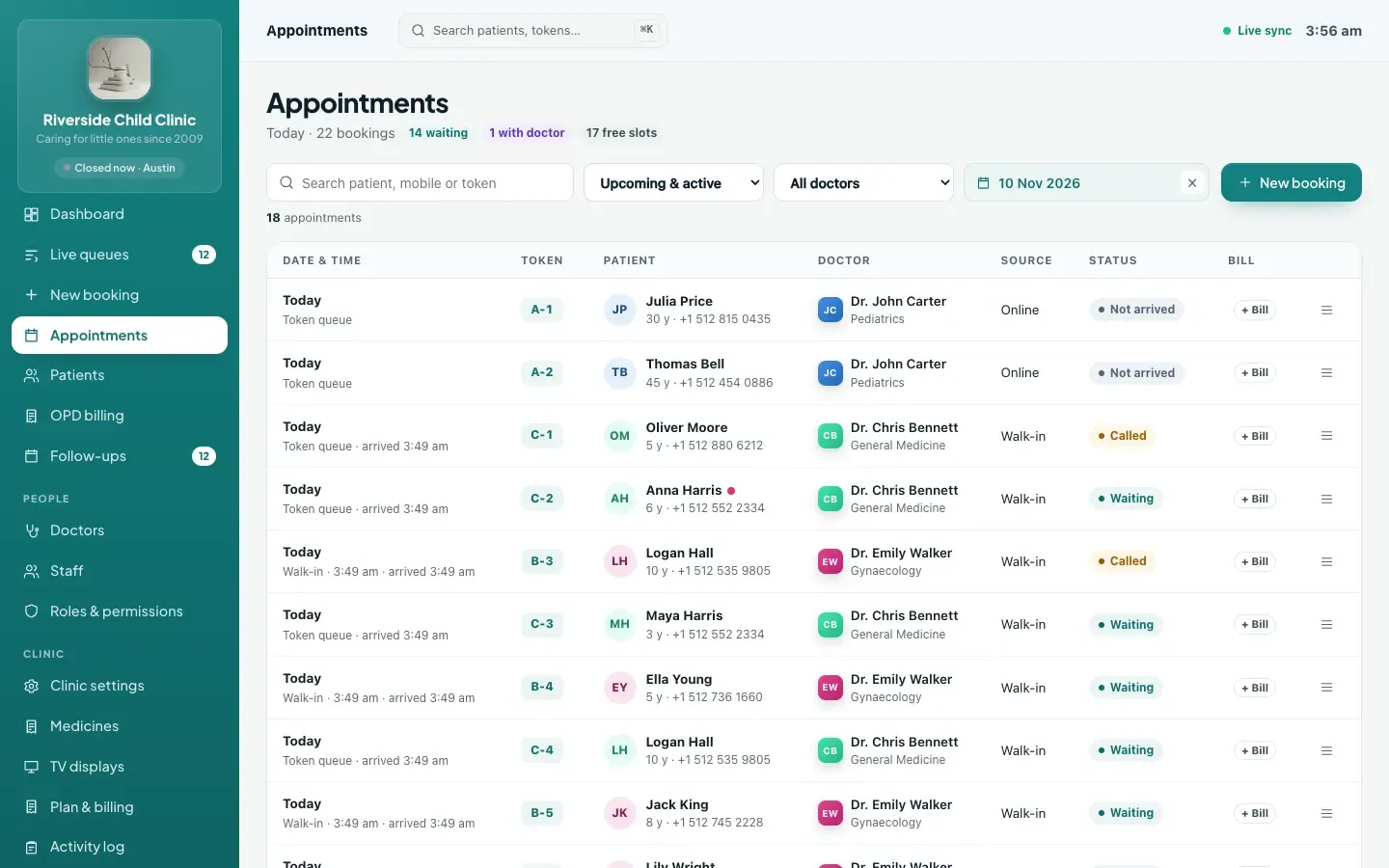
Patients can also cancel or reschedule from their own tracking link while the booking is still open, which saves reception a phone call. If a doctor goes on leave, the affected bookings are listed so staff can cancel them and send each patient a pre-filled WhatsApp message.
Common mistakes with online booking
- Opening too many days ahead. A long booking window fills the calendar with patients who forget. A shorter window keeps bookings fresher.
- Forgetting to mark leave. If a doctor's leave is not entered, patients will book a day the doctor is away. Enter leave as soon as it is known.
- Hiding the fee. Patients appreciate knowing the consultation fee before they arrive. Show it on the booking page.
- Not testing on a phone. Almost every patient books on a mobile. Book a test token yourself before sharing the link.
How ClinicWorkFlo helps
ClinicWorkFlo gives every clinic a public booking page and connects it directly to the live queue. In practice:
- A branded booking page with your logo and colour, speciality filters, doctor search, qualifications and fees, in three short steps: doctor, time, details.
- Token or slot booking per doctor, with slot length, daily limits, advance days and online booking switches.
- Doctor availability from weekly sessions plus leave, changed hours and extra days.
- Walk-ins, phone and online bookings in one queue, with the source shown on every token.
- A live tracking link after every booking, where patients can also cancel or reschedule while that is still allowed.
- A QR poster and per-doctor links you can share anywhere, plus a WhatsApp message template your staff can send after booking.
- Indian mobile number formats, your clinic's time zone and your local currency throughout.
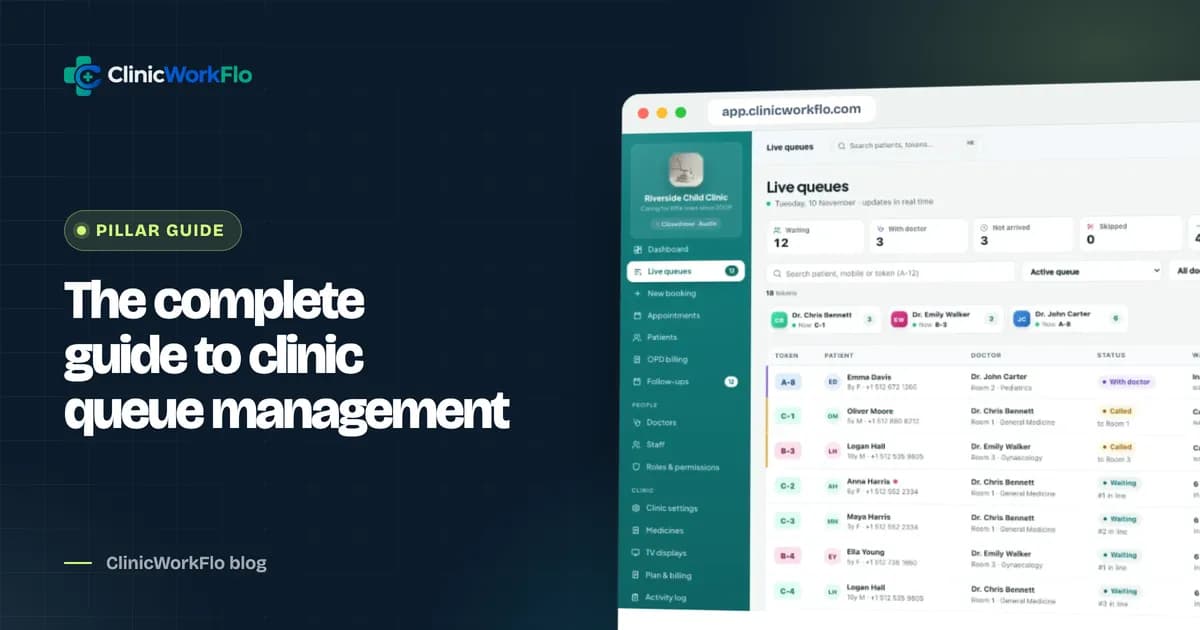
Patients pay at the clinic; ClinicWorkFlo does not collect payments online. For the bigger picture of how booking feeds the queue, read our clinic queue management system guide. To understand what patients see after booking, see real-time patient queue tracking, and for walk-in tokens at the desk, our article on the OPD token system.
Ready to see your own booking page? Book a 30-minute meeting and we will set it up with your doctors during the call.
Frequently asked questions
Do patients need an account or an app to book online?
No. With ClinicWorkFlo, patients book on a web page using their name and mobile number. There is no app to install and no password to create. Patients who visit often can add the page to their phone's home screen.
Can some doctors use time slots while others use tokens?
Yes. The booking mode is set per doctor. Slot doctors show bookable times; token doctors give the next token number for the chosen day. Both appear on the same booking page and in the same reception screen.
How do walk-in patients fit around online appointments?
Walk-ins join the same queue as online bookings. For slot doctors, a walk-in is recorded at their arrival time, and a booked patient is never called before their slot. Only patients who have checked in are called.
Can patients pay the consultation fee online when they book?
Not at present. The booking page shows the consultation fee and tells patients to pay at the clinic. Reception then records the payment by cash, UPI, card or another mode in OPD billing.
What stops someone from booking many tokens with the same number?
Each patient can hold only one open booking per doctor per day, and online bookings per mobile number are limited each day. Doctors also have daily limits, after which online booking for that day closes.
Can patients cancel or change their booking themselves?
Yes. From their tracking link, patients can cancel while the booking is still open, and reschedule a booking they have not yet arrived for, within your online booking rules. Reception sees the change immediately.
Conclusion
Online appointment booking for clinics works best when it respects how your OPD really runs: tokens where tokens make sense, slots where they help, and walk-ins in the same line as everyone else. Keep the booking page short, set honest availability and sensible limits, and give patients a live view after they book.
If you would like help choosing the right setup for each of your doctors, talk to our team or schedule a 30-minute meeting. You can also book a free demo to see the whole booking-to-queue flow.